Install Witzo on WordPress
Embed the script in your site footer, clear the cache, and confirm the widget displays without issues.
Overview
Witzo is installed on WordPress by adding your widget script to a global location. This ensures the widget loads on all pages. You can add it through your theme files or a header/footer plugin.
Steps to Install
| Step | Action |
|---|---|
| 1 | Go to Dashboard -> Widget Customization -> Copy your embed script. |
| 2 | Log in to your WordPress Admin. |
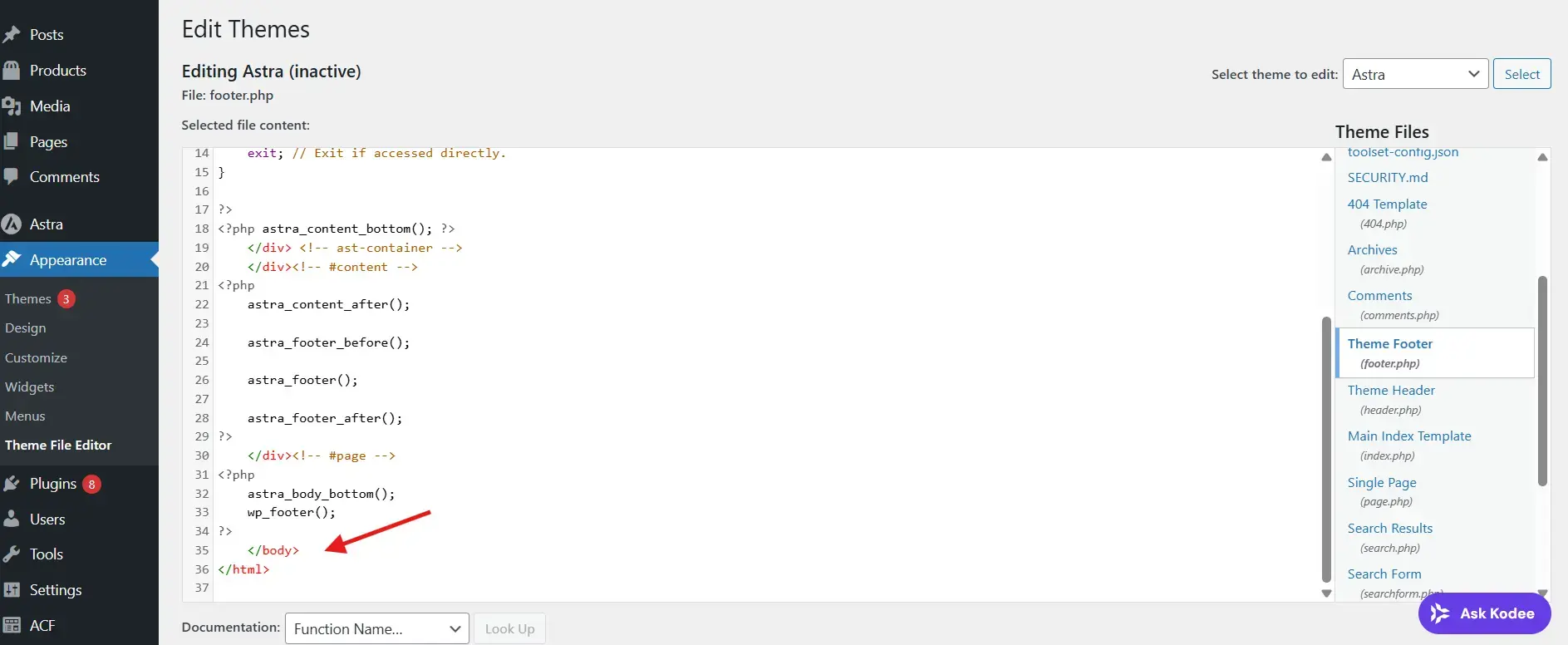
| 3 | Go to Appearance -> Theme File Editor -> footer.php. |
| 4 | Paste the script before the closing </body> tag. |
| 5 | Save the file. |
Alternative Method
Recommended for Non-Technical Users
| Step | Action |
|---|---|
| 1 | Install a header/footer plugin such as "WPCode" or "Insert Headers and Footers". |
| 2 | Go to Settings -> Header & Footer. |
| 3 | Paste the script in the Footer Scripts section. |
| 4 | Save changes. |
Clear Cache
If you use caching:
| Step | Action |
|---|---|
| 1 | Clear your WordPress cache plugin (e.g., WP Rocket, LiteSpeed, W3 Total Cache). |
| 2 | Clear server cache if hosted on managed hosting. |
| 3 | Clear CDN cache (Cloudflare or other provider). |
| 4 | Hard refresh your browser (Ctrl + Shift + R). |
Testing Checklist
| Check | Item |
|---|---|
| Widget appears on website. | |
| No console errors in browser DevTools. | |
| You can open and send a test message. | |
| AI responds correctly. | |
| Conversation appears in Dashboard -> Conversations. | |
| Usage updates in Dashboard -> Analytics. |
Important Notes
Always use the correct widget key.
Script must be added globally if you want site-wide coverage.
If using page builders like Elementor, avoid adding the script inside individual pages.